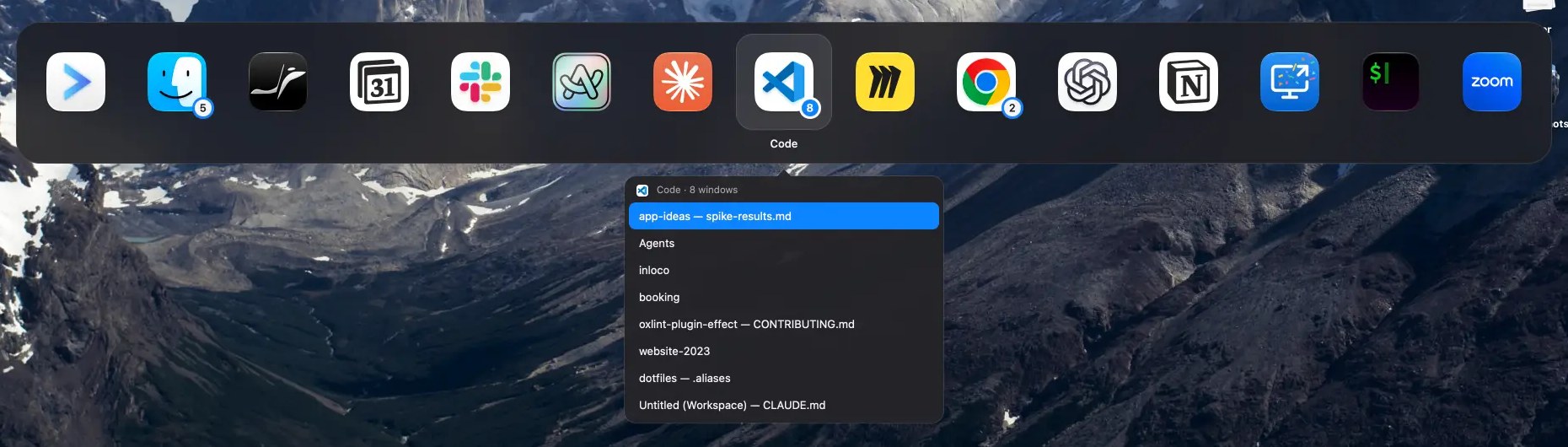
The ⌘Tab you know. One level deeper.
Entirely keyboard-driven: ⌥Tab, Tab, Tab, ↓, ↓, release. Your hands never leave the keys. Make the shortcuts yours.
Feels like ⌘Tab
Hold ⌥ and press Tab: apps in most-recently-used order, exactly like the native switcher.
Drop down to a window
Press ↓ on an app with two or more windows to open its Window list, then pick just the one you want.
Window count badge
A small number on the icon tells you which apps have more than one window.
Window shortcut
⌥` opens the switcher on the current app with its windows already listed. Press again to move on, ⇧ to go back.
Current Space only
Only windows on the Spaces you're looking at, on every display. The switcher shows up on the screen with the pointer.
Minimized, hidden, full screen
Labelled in the list. Pick one and it comes back, or takes you to its full-screen Space.
Quick press
Tap and release fast to jump straight back to the previous app, without the switcher ever appearing.
Titles, no thumbnails
No Screen Recording permission, no capture lag.
Install
- 1
Download and unzip
Unzipping Downtab.zip gives you a Downtab folder with Downtab.app and EmergencyRestore.
- 2
Clear the quarantine
Downtab isn't notarized, so macOS blocks it while it carries the quarantine attribute. Before opening or moving anything, clear it on the whole extracted folder (it covers EmergencyRestore too). Adjust the path if you unzipped it elsewhere. Right-click → Open no longer works since macOS 15.
$xattr -dr com.apple.quarantine ~/Downloads/Downtab - 3
Move it to Applications
Drag Downtab.app into your Applications folder.
- 4
Grant Accessibility
System Settings → Privacy & Security → Accessibility, then turn on Downtab. Updates keep the permission, as long as they're signed with the same certificate.
Troubleshooting
xattr says “Operation not permitted”
This happens once Downtab.app has been opened, and blocked, from Applications. Moving it elsewhere doesn't help: the protection follows the app. Move Downtab.app to the Trash, unzip the download again and repeat the install steps, clearing the quarantine before opening or moving anything.
Downtab doesn't react, but Accessibility is on
Since 0.2.0 Downtab has a new bundle identifier, so a grant from an older version doesn't apply. Reset both entries, relaunch Downtab and grant Accessibility again.
tccutil reset Accessibility io.doubleloop.downtabtccutil reset Accessibility io.github.iacoware.downtabIf the second command says “No such bundle identifier”, remove the old Downtab entry from System Settings → Privacy & Security → Accessibility with the − button.
⌘Tab is broken
Only needed if you set ⌘Tab or ⌘` as a Downtab shortcut. The defaults, ⌥Tab and ⌥`, never touch them.
After a crash or a forced quit, the native ⌘Tab / ⌘` can stay off. Double-click EmergencyRestore, or run it in Terminal from the Downtab folder, to turn them back on.
./EmergencyRestore./EmergencyRestore --status--status only shows whether they're on or off, without changing anything.